In the digital age, writing a check by hand feels increasingly outdated. It’s slow, prone to messy handwriting, and if you make a single spelling mistake, you waste a valuable check leaf. Yet, millions of businesses and individuals still rely on checks for rent, vendor payments, and government fees.
If you are searching for a reliable “check print online” solution, you aren’t alone. The trend is shifting away from expensive, clunky desktop software (like QuickBooks or Quicken) toward free, browser-based tools that allow you to print checks instantly using your home printer.
In this guide, we’ll show you how to use our Check Print Online Tool to create professional, bank-ready checks in minutes, and why making the switch today can save you time and money.
Why Use a Check Print Online Tool?
Why bother printing when you can just write? While handwriting is free, it comes with hidden costs. Here are four reasons why smart businesses have switched to digital methods:
- Professionalism: A printed check looks authoritative. It shows your landlord, vendor, or client that you take your finances seriously. A handwritten scrawl can look amateurish, whereas a printed document implies an established business.
- Security & Clarity: Handwritten numbers can be ambiguous (is that a 1 or a 7?). Ambiguity is one of the top reasons checks bounce. Printed numbers are unmistakable, preventing fraud or banking errors.
- Error Reduction: We’ve all done it—written “Fourty” instead of “Forty” or messed up the date. Our check print online tool automatically converts numbers to words (e.g., 1200 becomes “One Thousand Two Hundred Only”), eliminating spelling errors entirely.
- No Software to Install: Traditional check printing software is heavy, expensive, and often requires a specific operating system (Windows or Mac). Our solution runs directly in your browser—whether you use Chrome, Safari, or Edge—making it the most accessible check print online option available.
Is It Safe to Print Checks Online?
This is the #1 question we get. Most “online” tools ask you to create an account and save your bank data on their servers. That is a security risk that many users are rightly wary of.
ChequePrint.Cloud is different. We use Client-Side Processing.
- When you type your Payee Name and Amount, that data never leaves your computer.
- The preview is generated instantly by your browser’s code.
- We do not see, store, or save your financial data.
It is as secure as typing into a Word document on your offline computer. You get the convenience of a cloud tool with the privacy of offline software.
How to Print a Check Online (5 Easy Steps)
We have designed our tool to be the simplest check print online utility on the web. You don’t need to be a tech wizard to use it.
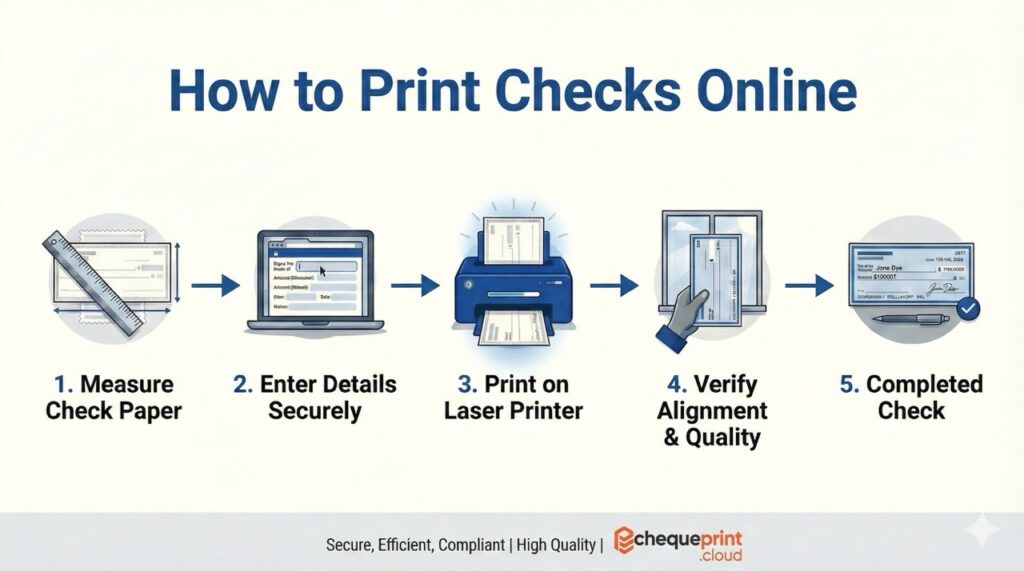
Step 1: Gather Your Supplies
You need three simple things to get started:
- Your standard Checkbook (issued by your bank).
- A Printer (Laser is recommended for crisp text, but Inkjet works too).
- Our Free Check Printing Tool.
Step 2: Input the Check Details
On our homepage tool, enter the following:
- Date: Use the standard format. Note for US Users: Our tool uses international spacing for date boxes. If your check has a simple line for the date, the printed date will sit perfectly on top of it.
- Payee Name: The person or business you are paying.
- Amount: Enter the numbers (e.g., 1250.50). Watch as our tool instantly converts this to words, ensuring legal accuracy.
Step 3: The “Plain Paper” Calibration
This is the most important step for using any check print online service for the first time.
- Load a blank sheet of plain white paper into your printer.
- Click Print.
- Take the printed sheet and hold it against a light source (like a window) with your real check leaf behind it.
- Check Alignment: Does the “Payee” name land on the line? Is the amount inside the box?
Step 4: Adjust the Offsets
Every printer feeds paper differently. If your text is printing too high or too far to the left, don’t worry. This is normal.
- Use our Top Offset and Left Offset inputs on the tool.
- Enter values (in pixels) to nudge the text.
- Example: Entering
10in Top Offset moves the text down. Entering20in Left Offset moves it right.
Step 5: Print on Real Check Stock
Once your plain paper test looks perfect:
- Load your real check leaf into the printer.
- Ensure the orientation is correct (Face Up vs Face Down). Look for the icon on your printer tray.
- Print!
Troubleshooting Common Issues
Even with the best check print online tools, printers can be finicky.
- Scaling Issues: If the text prints too small, check your printer settings dialog. Ensure “Scale” is set to 100% or “Actual Size”. Never select “Fit to Page,” as this shrinks the layout.
- Bank Rejection: Ensure you do not print over the MICR line (the strange numbers at the bottom of the check). This magnetic ink is required for automated clearing. Our tool is designed to keep this area clear.
Frequently Asked Questions
Conclusion
Stop struggling with messy handwriting and the fear of spelling mistakes. Using a check print online tool is the modern, secure, and professional way to handle your payments. Whether you are a small business owner or just paying rent, digital printing ensures accuracy and peace of mind.
Ready to get started? Click here to use the tool now.