Print Cheques on a Brother HL Printer
Generate perfectly aligned cheque text and learn the correct paper orientation for your Brother HL laser printer.
Global Cheque Printer
Required Browser
Physical Size: 203mm x 93mm
CRITICAL: Set Print Scale to "Default" or "100%"
Mac, Windows, iOS, and Android standalone apps are in active development. Take your printing offline soon!
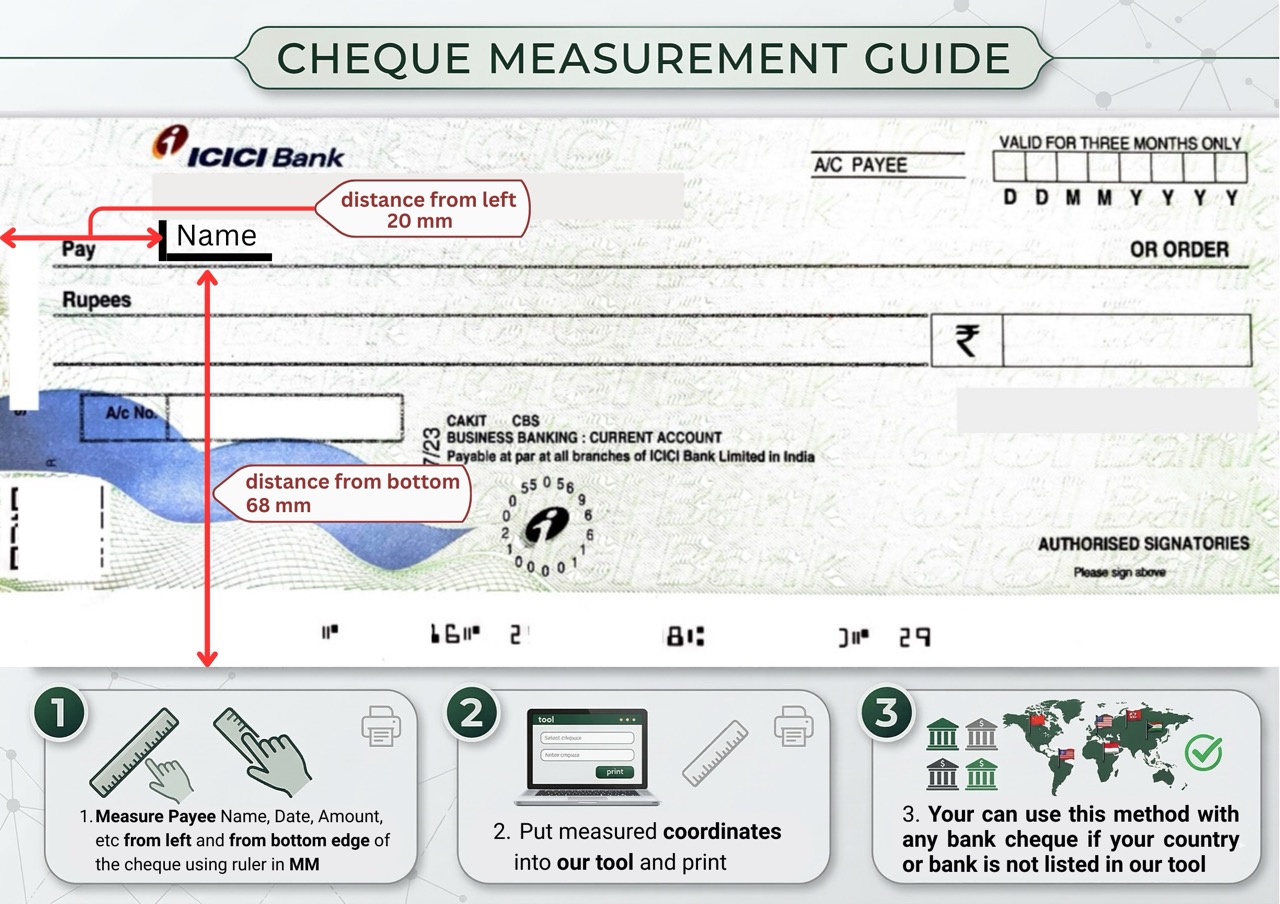
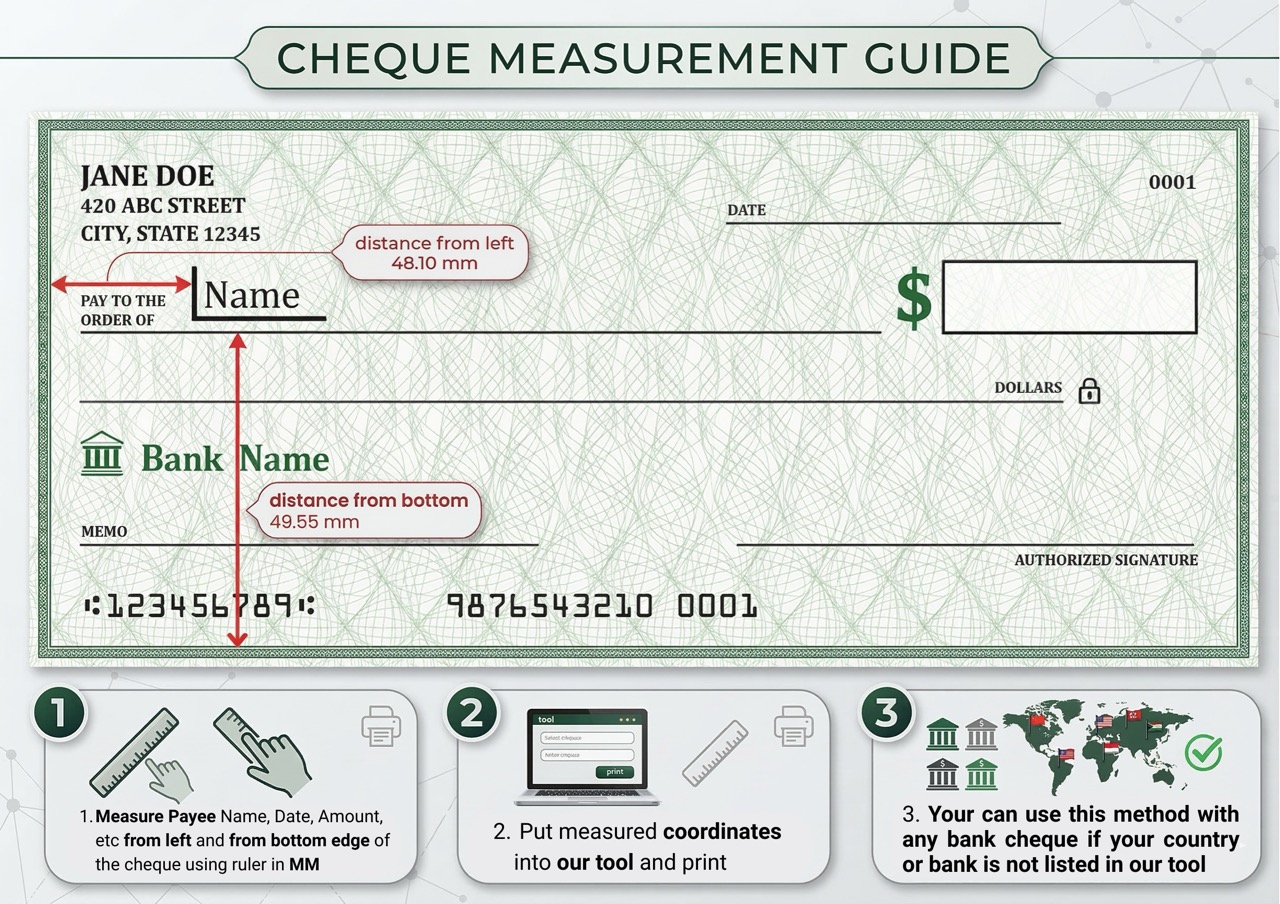
How it works
Align & Print in 4 Steps
Generate your cheque layout and send it to your Brother HL Series flawlessly.
- Type the amount, payee, and date.
- Words will generate automatically.
- Check the live preview.
- Use ‘Absolute Placement’ if fields misalign.
- Load your cheque: Face-up with the top edge (date side) entering first..
- Use the Always use the Manual Feed Slotlocated on the front of the printer..
- Always test print on blank paper first!
- Hold it against the light with your real cheque.
Feeding Guide
How to load Brother HL Series
Avoid paper jams and upside-down printing by loading your cheque correctly.
For this model, use the Always use the Manual Feed Slotlocated on the front of the printer. to prevent the cheque from bending or skewing.
Place the cheque Face-up with the top edge (date side) entering first..
Slide the plastic paper guides tightly against the cheque edges so it pulls straight.
FAQ
Brother HL Series Troubleshooting
Solutions for common formatting and printing errors.
If you get a paper size error, open your print dialog box and ensure the paper size is set to ‘Custom’ with the exact millimeter dimensions of your cheque.
We highly recommend printing one cheque at a time via the manual feed slot to prevent multi-feed jams.
This happens when your browser print scale is not set to 100%. Open ‘More Settings’ in the Chrome print dialog and ensure scaling is ‘Default’ or ‘100%’.
We strongly recommend printing cheques one at a time. Small cheque leaves easily stick together, leading to severe paper jams.