Print Cheques on an HP OfficeJet
Setup your exact cheque dimensions in seconds and follow our visual guide for loading the HP OfficeJet tray.

Global Cheque Printer
Required Browser
Physical Size: 203mm x 93mm
CRITICAL: Set Print Scale to "Default" or "100%"
Mac, Windows, iOS, and Android standalone apps are in active development. Take your printing offline soon!
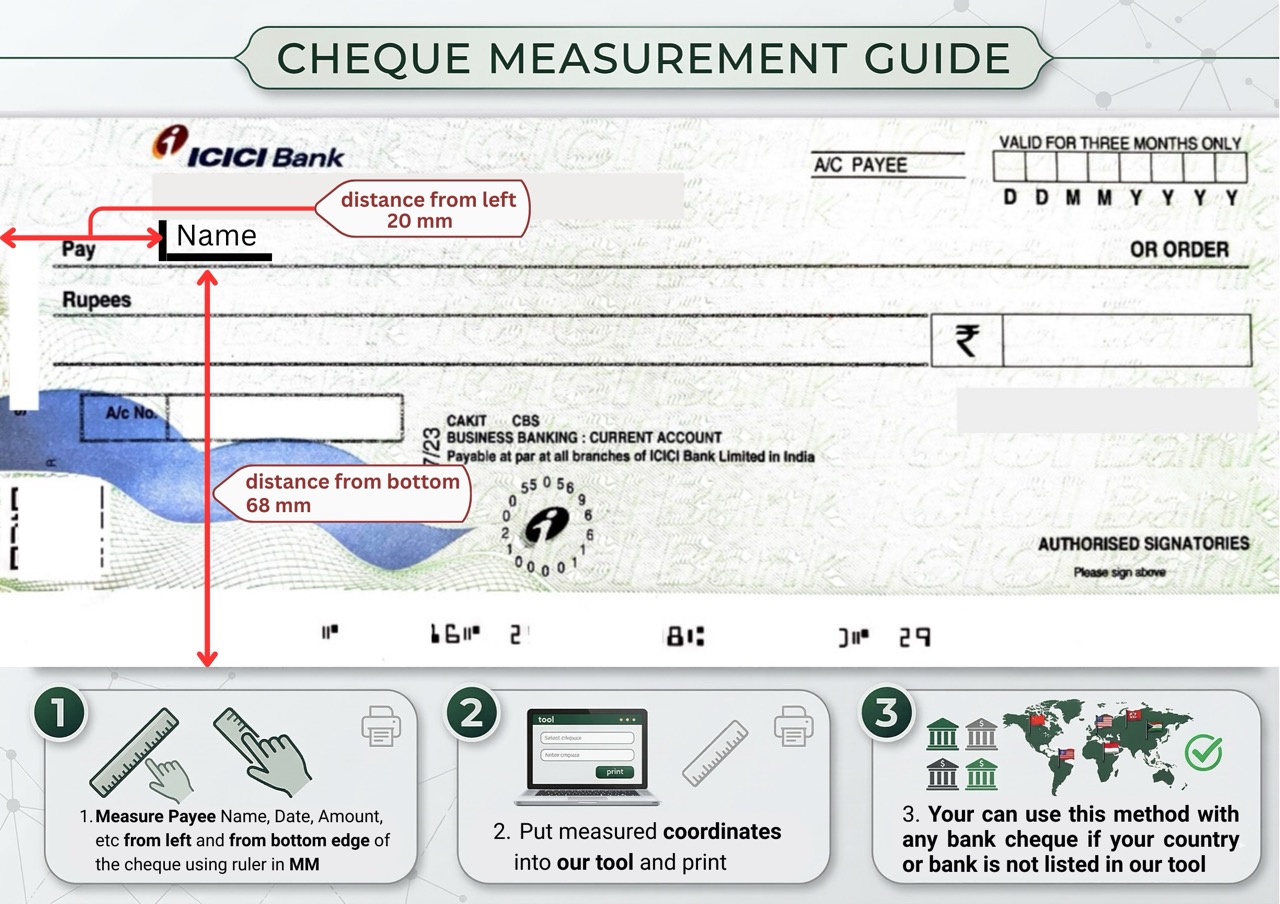
How it works
Align & Print in 4 Steps
Generate your cheque layout and send it to your HP OfficeJet flawlessly.
- Type the amount, payee, and date.
- Words will generate automatically.
- Check the live preview.
- Use ‘Absolute Placement’ if fields misalign.
- Load your cheque: Face-down with the top edge facing the back of the tray..
- Use the Use the Main Input Tray and slide the width guides to the center..
- Always test print on blank paper first!
- Hold it against the light with your real cheque.
Feeding Guide
How to load HP OfficeJet
Avoid paper jams and upside-down printing by loading your cheque correctly.
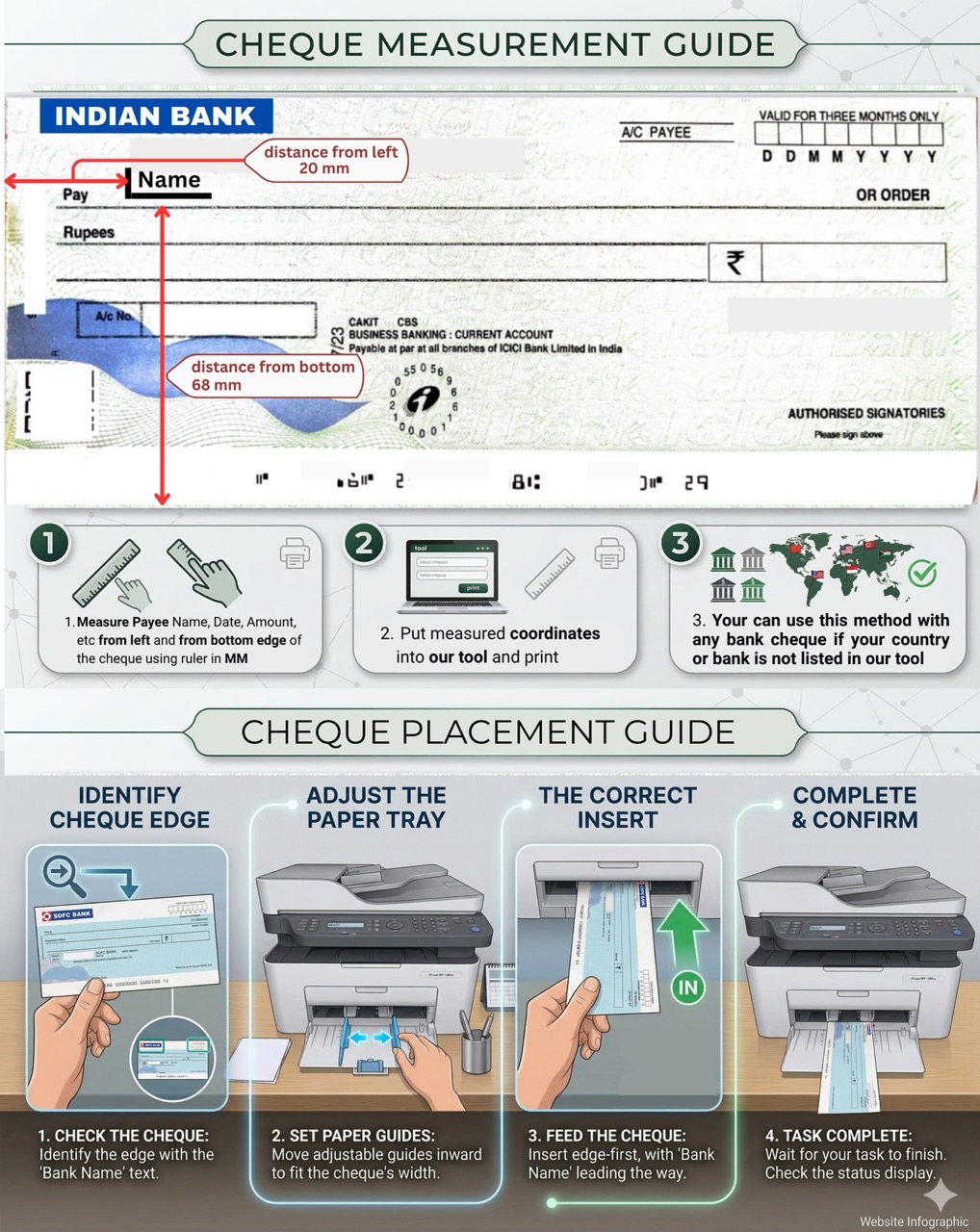
For this model, use the Use the Main Input Tray and slide the width guides to the center. to prevent the cheque from bending or skewing.
Place the cheque Face-down with the top edge facing the back of the tray..
Slide the plastic paper guides tightly against the cheque edges so it pulls straight.
FAQ
HP OfficeJet Troubleshooting
Solutions for common formatting and printing errors.
OfficeJet models flip the paper internally. You must place the cheque face-down. Do a test run with a blank piece of paper first!
Set the paper size to ‘Custom’ and enter the exact width and height of your cheque leaf in millimeters.
This happens when your browser print scale is not set to 100%. Open ‘More Settings’ in the Chrome print dialog and ensure scaling is ‘Default’ or ‘100%’.
We strongly recommend printing cheques one at a time. Small cheque leaves easily stick together, leading to severe paper jams.