Perfectly align and print cheques on your HP DeskJet without paper jams using our free tool.
Desktop Required
This cheque printing tool requires a larger screen to operate.
Open in Google Chrome on a desktop or laptop
Mobile Apps Launching Soon!
Our Android & iOS apps are in active development. Join the waitlist to get notified when they launch.
You're on the list!
We'll notify you when the app launches.
Global Cheque Printer
Required Browser
Use Google Chrome Browser for desktop for best results.
✨ More banks soon!
Physical Size: 203mm x 93mm
Print?
🚫 Date print is not available for "Other Bank". Print other fields only.
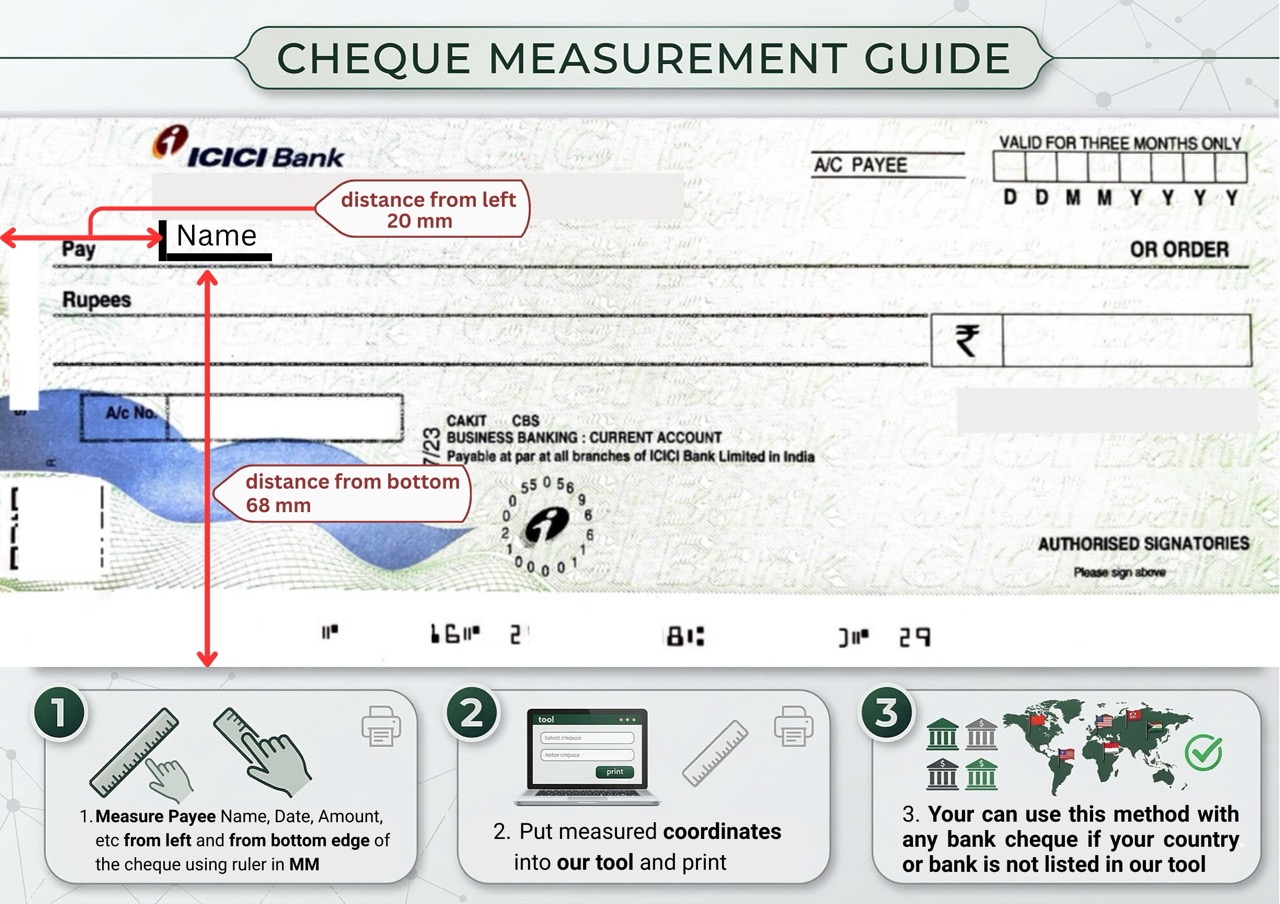
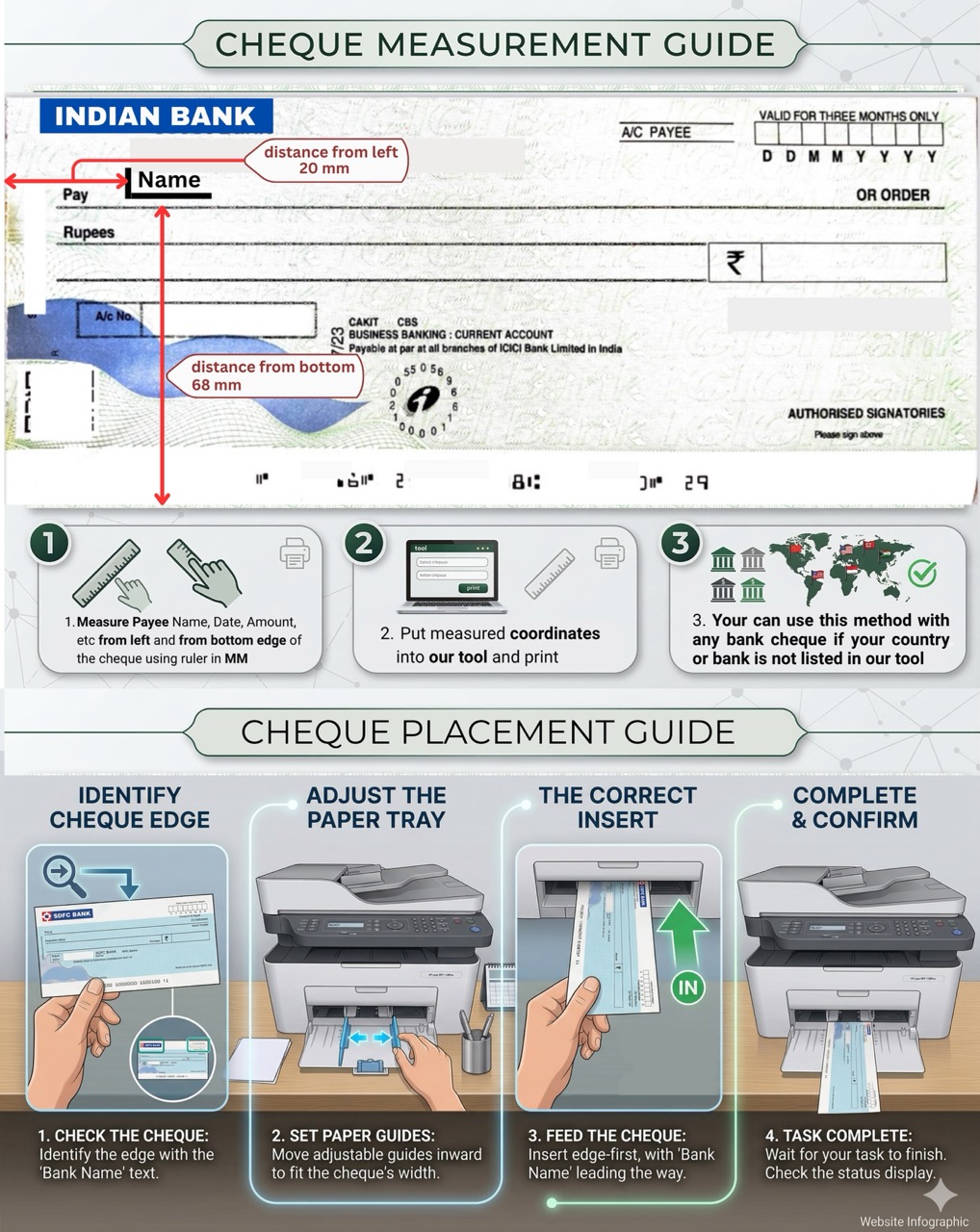
Absolute Placement Coordinates (mm)
Field
Dist. From Left
Dist. From Bottom
Payee
Amt Words
Amt Digits
Date
Memo
A/C Payee
Date Gap
Checking print access…
CRITICAL: Set Print Scale to "Default" or "100%" in print dialogue window
🚀Native Apps
COMING SOON
Mac, Windows, iOS, and Android standalone apps are in active development. Take your printing offline soon!
You're on the list! We'll notify you at launch.
How to Measure Your Cheque
Live Cheque Preview
History Ledger
View, search, filter, and reprint past cheques
to
Payee Directory
Save and manage your frequent payees
1 Selected
Saved Templates
Manage your custom cheque layouts and coordinates
Settings & Account
Manage your subscription, account details, and settings
Account Status
U
User
Signed in
Free
Subscription
Checking subscription…
Verify your email
We've sent a verification email to .
Please verify your email before continuing.
Sign In
Sign in to use your Pro subscription across devices.
Create Account
Create an account to manage your subscription and Pro data.
Reset Password
Enter your email and we'll send secure password-reset instructions.
or use email
Don't have an account?
Already have an account?
Remember your password?
PRO
You’ve used your 5 free prints
Upgrade to Pro for unlimited cheque printing and access to all Pro features.
How it works
Align & Print in 4 Steps
Generate your cheque layout and send it to your HP DeskJet flawlessly.
1
Step 01
Enter Details
Type the amount, payee, and date.
Words will generate automatically.
2
Step 02
Adjust Coordinates
Check the live preview.
Use ‘Absolute Placement’ if fields misalign.
3
Step 03
Load the Printer
Load your cheque: Face-Down, Top Edge First.
Use the Main Input Tray.
4
Step 04
Test & Print
Always test print on blank paper first!
Hold it against the light with your real cheque.
Feeding Guide
How to load HP DeskJet
Avoid paper jams and upside-down printing by loading your cheque correctly.
1
Select the Tray
For this model, use the Main Input Tray to prevent the cheque from bending or skewing.
2
Orientation
Place the cheque Face-Down, Top Edge First.
3
Secure the Guides
Slide the plastic paper guides tightly against the cheque edges so it pulls straight.
Printer Dialog Tip: When clicking print in Chrome, ensure Paper Size is set to ‘Custom’ and Scale is exactly 100%.
FAQ
HP DeskJet Troubleshooting
Solutions for common formatting and printing errors.
How do I load cheques in an HP DeskJet?
Load the cheque face-down with the top edge entering first. Slide the paper width guides firmly against the cheque leaf to prevent the rollers from pulling it diagonally.
Does ink smear on cheques printed with HP DeskJet?
HP DeskJet uses inkjet technology. Allow the cheque to dry for 15 seconds after printing to avoid smudging the ink.
Why is the text printing outside the boxes?
This happens when your browser print scale is not set to 100%. Open ‘More Settings’ in the Chrome print dialog and ensure scaling is ‘Default’ or ‘100%’.
Can I print multiple cheques at once?
We strongly recommend printing cheques one at a time. Small cheque leaves easily stick together, leading to severe paper jams.